
.htaccess File: Redirects and SEO Configuration

The .htaccess file is an Apache server configuration file that allows you to configure redirects, compression, and headers for a specific website directory without access to the main server configuration. In SEO, it is primarily used for 301 redirects: from HTTP to HTTPS, between the www and non-www versions, and from old URLs to new ones after changing the site structure.
Each rule here includes code to copy and a brief explanation of what it does. As of October 15, 2026. We verified the syntax in the Apache HTTP Server 2.4 documentation, and Google's behavior in Google Search Central.
What Is a .htaccess File and When Does the Server Read It?
The .htaccess file is a so-called distributed configuration file. The dot at the beginning of the name denotes a hidden file in Unix-like systems, which is why you sometimes need to enable showing hidden files in your hosting file manager. It usually resides in the website root directory ( public_html, www, htdocs) and applies to this directory and all its subdirectories. A file in a subdirectory can override rules from a higher-level directory.
The server only reads .htaccess when the main configuration allows it. This is determined by the AllowOverride directive, whose default value in Apache 2.4 is None. With None, the contents of the .htaccess file are completely ignored, and the rules produce neither an effect nor an error. On shared hosting this is usually enabled, while on your own VPS you often have to enable it yourself.
For redirects via mod_rewrite, two things are required at the same time:
AllowOverridemust includeFileInfo, because this group permits theRewriteEngine,RewriteCond, andRewriteRuledirectives,- the
FollowSymLinksorSymLinksIfOwnerMatchoption must be enabled.
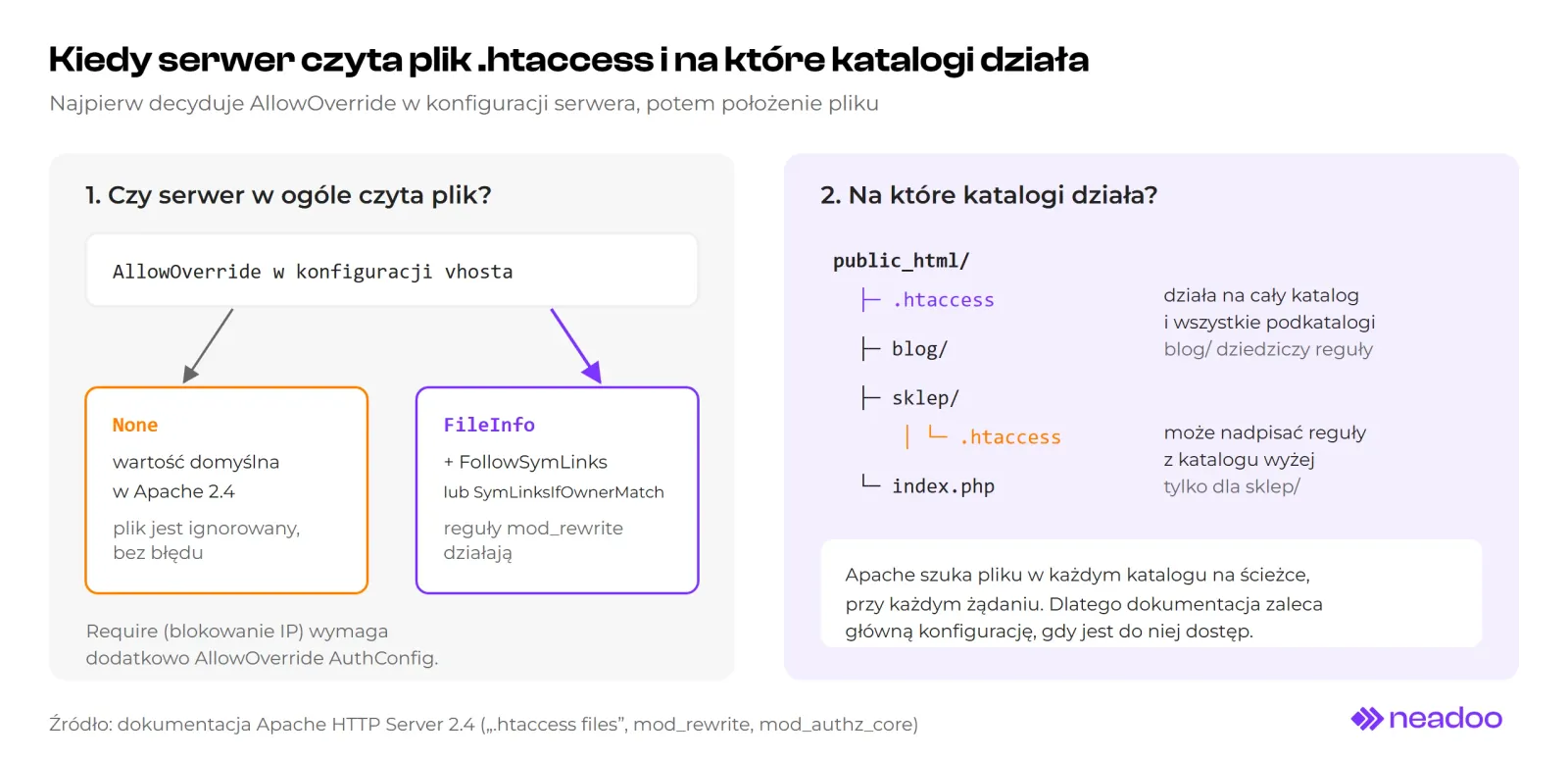
Fig. 1. Two questions before each change: does the server read the file, and which directories does the rule affect.
How to Create and Edit a .htaccess File?
The .htaccess file is a plain text file without an extension. You can edit the contents of a .htaccess file in three ways:
- File manager in the hosting control panel. The simplest way: open the website root directory, enable showing hidden files, and edit the file in your browser.
- FTP client. Connect to the FTP server (e.g., with FileZilla), download the file, edit it locally, and upload it back to the same location.
- Text editor on your computer. The simplest text editor, such as Notepad, is sufficient. Word and similar document editors add formatting that the server will not understand.
If the file does not exist, you need to create the .htaccess file yourself. In Notepad, when saving, select "All Files" as the type and enter the name .htaccess. Otherwise, the system will save it as .htaccess.txt and the server will ignore it. Encoding: UTF-8.
Make a backup copy of the .htaccess file before making any changes. A single typo in a directive can take down the entire website with a 500 error, and a backup allows you to restore a working version in seconds.
Where Is the .htaccess File in WordPress and What Is It Used for in Permalinks?
In the installation root directory, in the same folder as wp-config.php. WordPress uses it to handle permalinks - direct links like /blog/htaccess-file/ instead of /?p=123. If the file does not exist or has been corrupted, the default block according to WordPress documentation looks like this:
# BEGIN WordPress
RewriteEngine On
RewriteRule .* - [E=HTTP_AUTHORIZATION:%{HTTP:Authorization}]
RewriteBase /
RewriteRule ^index\.php$ - [L]
RewriteCond %{REQUEST_FILENAME} !-f
RewriteCond %{REQUEST_FILENAME} !-d
RewriteRule . /index.php [L]
# END WordPress
A simpler way to recreate it: in the WordPress admin dashboard, go to Settings, Permalinks, and click Save Changes without changing anything. If WordPress has write permissions, it will create this block automatically.
Is .htaccess the Best Place for Redirects?
Not always. Apache documentation explicitly recommends keeping rules, including mod_rewrite, in the main server configuration if you have access to it. The reason is performance: the main configuration is loaded once when the server starts, whereas the .htaccess file contents are loaded with every request. When .htaccess files are allowed, Apache searches for them in every directory along the path to the file, even if none exists.
In practice, on shared hosting and in most WordPress installations, .htaccess is the only place you have access to, so that is where redirects end up. If you manage the server yourself, move the rules to the vhost configuration. The syntax is almost identical; it differs in path matching (more on this below).
On an Nginx server, the .htaccess file does not exist at all, and the rules must be rewritten into Nginx syntax.
Let's check your website's potential
Share your website and email - we'll get back to you with a real analysis, no strings attached.
Which Redirect Code to Use in .htaccess?
For a permanent URL change, use 301; for a temporary one, 302. Google treats 301 and 308 as permanent redirects, and 302, 303, and 307 as temporary. We described the differences between codes and their impact on SEO separately in the article on website and domain redirects, and the full list of codes, including 4xx and 5xx, in the article on HTTP status codes.
In the .htaccess file, the code is specified in brackets: [R=301]. The [R] flag alone without a number means a 302 (temporary) redirect to Apache. This is easy to overlook because the redirect works and looks no different in a browser. In mod_alias, the equivalent is the word permanent or the number: Redirect 301. Redirect alone without a code also results in a 302.
Redirecting HTTP to HTTPS in .htaccess, Along with www
A common task is to standardize the domain address: enforcing HTTPS and a single version of the website, either with www or without it. Before implementing this, check whether the SSL certificate works for both domain variants; otherwise, the redirect will result in a browser warning. This is done with a single rule so that every URL variant reaches its destination in one hop. Two separate rules (first HTTPS, then www) create a chain of two redirects for an http://www. address.
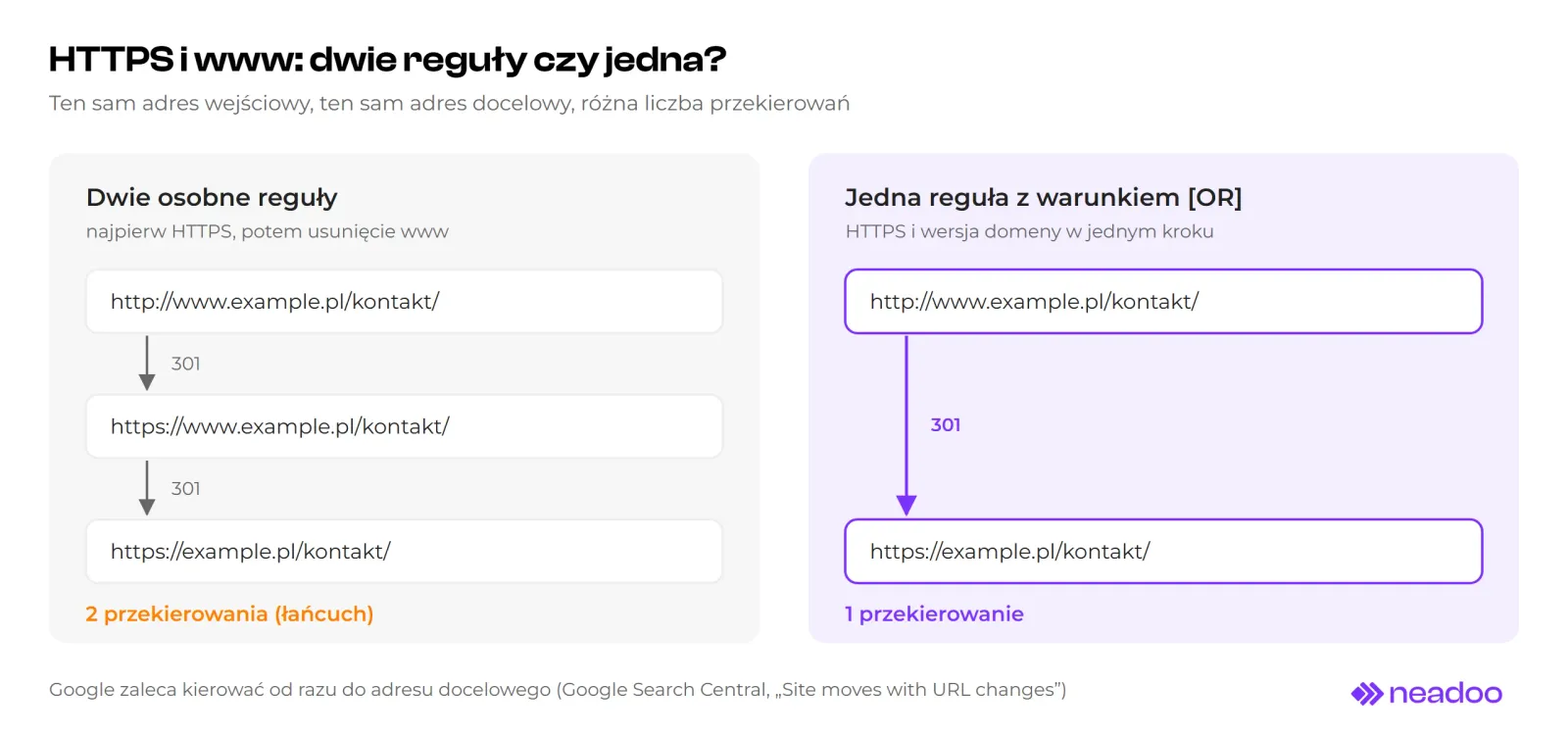
Fig. 2. The same source and destination address, but with two rules, the bot passes through an intermediate address.
Non-www version:
RewriteEngine On

RewriteCond %{HTTPS} off [OR]
RewriteCond %{HTTP_HOST} ^www\. [NC]
RewriteRule ^ https://example.pl%{REQUEST_URI} [R=301,L,NE]
Version with www:
RewriteEngine On

RewriteCond %{HTTPS} off [OR]
RewriteCond %{HTTP_HOST} !^www\. [NC]
RewriteRule ^ https://www.example.pl%{REQUEST_URI} [R=301,L,NE]
What is happening here:
%{HTTPS}has the valueonfor an encrypted connection andoffin other cases,[OR]joins conditions with "or" instead of the default "and",- the domain is hardcoded, so the rule always points to a single destination address, regardless of which version the request originated from,
%{REQUEST_URI}passes the path, and Apache appends query parameters after?automatically,NEdisables re-encoding characters that are already encoded inREQUEST_URI.
HTTPS Behind Cloudflare or Another Proxy
If the site is behind Cloudflare, a load balancer, or a reverse proxy, the rule with %{HTTPS} off can trigger a redirect loop. The proxy receives traffic over HTTPS, but connects to the origin server over HTTP, so the server always sees off and redirects infinitely. Cloudflare directly describes this in its documentation as the cause of ERR_TOO_MANY_REDIRECTS when using the "Flexible" SSL mode and recommends switching to "Full" mode or higher, or removing the redirect on the origin server.
When the proxy forwards the original protocol in the X-Forwarded-Proto header, the condition can be based on it:
RewriteCond %{HTTP:X-Forwarded-Proto} !https
RewriteRule ^ https://example.pl%{REQUEST_URI} [R=301,L,NE]
Only use this variant when you are certain that all traffic passes through a proxy that sets this header.
HSTS After Switching to HTTPS
Once HTTPS is running stably, it is worth adding an HSTS header. After the first visit, the browser automatically switches http:// to https:// on its own, bypassing the redirect entirely. This requires the mod_headers module:
<IfModule mod_headers.c>
  Header always set Strict-Transport-Security "max-age=31536000; includeSubDomains"
</IfModule>
For the preload list (hstspreload.org), you need a max-age of at least 31,536,000 seconds (one year), includeSubDomains, and the preload directive. The service warns that an entry on the list cannot be easily undone. First, make sure that every subdomain has a working certificate.
301 Redirects in .htaccess: URLs, Directories, and Parameters
Apache provides two tools for redirects. Redirect and RedirectMatch from the mod_alias module are sufficient for simple cases. RewriteRule from mod_rewrite is needed when the condition involves a domain, protocol, or URL parameters.
In our opinion, it is better not to mix both modules in a single file. Each of them processes the request independently, so the order of lines in the file does not indicate which rule will execute first. If RewriteEngine On is already present in the file, write all redirects as RewriteRule.
Single URL
Via mod_alias:
Redirect 301 /stary-adres/ https://example.pl/nowy-adres/
Pitfall: Redirect matches a path prefix. A rule with /stary-adres/ will also redirect /stary-adres/anything to /nowy-adres/anything. When you want to redirect exactly one URL, use RedirectMatch with anchors:
RedirectMatch 301 ^/stary-adres/?$ https://example.pl/nowy-adres/
Via mod_rewrite:
RewriteRule ^stary-adres/?$ /nowy-adres/ [R=301,L]
Note the absence of a slash after ^. In an .htaccess file, Apache strips the directory path before matching, so a pattern starting with ^/ will never match. This explains why rules copied from a vhost configuration "do nothing" in .htaccess. /? allows the URL with or without a trailing slash, while ^ and $ prevent matching longer paths.
Entire Directory Preserving Subpages
RewriteRule ^blog/(.*)$ /poradnik/$1 [R=301,L]
The parentheses (.*) capture the rest of the path, and $1 inserts it into the destination URL. /blog/plik-htaccess/ will go to /poradnik/plik-htaccess/.
The QSA flag is not needed here. When the destination URL does not contain its own ?, Apache copies query parameters from the original request by default. QSA only matters when you append new parameters to the destination URL and want to preserve the old ones as well.
Old URLs with Parameters
The pattern in RewriteRule does not see the part after the question mark. To match parameters, use a condition on %{QUERY_STRING}:
RewriteCond %{QUERY_STRING} (^|&)id=42(&|$)
RewriteRule ^produkt\.php$ /buty-biegowe/ [R=301,L,QSD]
QSD removes the old query parameter from the destination URL. Without this flag, the redirect would point to /buty-biegowe/?id=42.
Redirecting an Entire Domain to Another Domain
When changing domains, every subpage of the old domain should map to its equivalent under the new address, rather than to the homepage. If the URL structure does not change, a single rule in the old domain's .htaccess is enough:
RewriteEngine On
RewriteCond %{HTTP_HOST} ^(www\.)?stara-domena\.pl$ [NC]
RewriteRule ^(.*)$ https://nowa-domena.pl/$1 [R=301,L]
The condition covers both the www and non-www versions, and $1 transfers the path. /kontakt/ on the old domain will go to https://nowa-domena.pl/kontakt/. The old domain must still point to the server with this file, rather than directly to the new domain, so do not disable its hosting immediately after migration.
Trailing Slash
For Google, /kategoria and /kategoria/ are two different URLs. If both return a 200 with the same content, duplicate content occurs. Choose one version and redirect the other.
Adding a trailing slash (skipping files to avoid breaking /style.css):
RewriteCond %{REQUEST_FILENAME} !-f
RewriteCond %{REQUEST_URI} !/$
RewriteRule ^ %{REQUEST_URI}/ [R=301,L]
Removing a trailing slash (skipping real directories):
RewriteCond %{REQUEST_FILENAME} !-d
RewriteCond %{REQUEST_URI} (.+)/$
RewriteRule ^ %1 [R=301,L]
For physical directories, Apache automatically adds a slash via a redirect because that is how the default-enabled DirectorySlash directive from mod_dir works. The documentation advises against disabling it for security reasons. In WordPress, the trailing slash format is defined by the permalink structure (Settings, Permalinks), and the CMS itself redirects the other version. A rule in .htaccess that enforces the opposite format results in a redirect loop.
Permanently Removed Content: 410
Not every old URL needs to be redirected. If content has been removed and has no equivalent, the 410 Gone status code explicitly states that the resource was removed intentionally:
Redirect gone /stara-promocja/
or in mod_rewrite using the G flag:
RewriteRule ^stara-promocja/?$ - [G]
Redirecting all removed URLs to the homepage is a bad idea. In its migration documentation, Google advises against pointing multiple old URLs to a single unrelated address, such as the homepage of the new website.
Rule Order in WordPress and Other CMSs
Place your custom redirects above the # BEGIN WordPress block. Apache reads the file from top to bottom. The WordPress block ends with a rule that passes every request that is not a file or directory (!-f, !-d) to index.php with the [L] flag. Redirects placed below it will not trigger for URLs generated by the CMS.
![Diagram of an .htaccess file read from top to bottom: at the top, the SEO Redirects block with HTTPS rules and a 301 redirect that works; in the middle, the WordPress block with the RewriteRule . /index.php [L] rule that directs every virtual URL to index.php; at the bottom, a rule appended to the end of the file that will not work for CMS URLs](/blog-media/htaccess-kolejnosc-regul-wordpress-1792417593246-d5d429d2.webp)
Fig. 3. A rule added below the WordPress block looks correct, but Apache never reaches it.
When saving permalinks, WordPress only overwrites the text between its own markers `
BEGIN WordPressand
END WordPress`. Rules above
the block remain untouched. For clarity, mark them with your own comments:
# BEGIN SEO Redirects
RewriteEngine On
RewriteBase /

RewriteCond %{HTTPS} off [OR]
RewriteCond %{HTTP_HOST} ^www\. [NC]
RewriteRule ^ https://example.pl%{REQUEST_URI} [R=301,L,NE]

RewriteRule ^stary-adres/?$ /nowy-adres/ [R=301,L]
# END SEO Redirects

# BEGIN WordPress
...
# END WordPress
Caching and security plugins also add their own blocks to the .htaccess file. Before making any changes, check what is already in the file and do not remove blocks you do not understand.
A second pitfall involves the L flag. In .htaccess, it only stops the current iteration of rule processing. If the URL was rewritten internally, Apache may process it again from the beginning, which can be a source of loops. In directory context, Apache documentation recommends the END flag, which stops processing completely. With external redirects (R=301), this issue does not occur because the response is immediately sent back to the browser.
Compression and Browser Caching in .htaccess
The .htaccess file is also useful for settings that speed up website loading. Here we show two: response compression ( mod_deflate) and static file storage duration in the browser ( mod_expires).
<IfModule mod_deflate.c>
  AddOutputFilterByType DEFLATE text/html text/css text/plain text/xml
  AddOutputFilterByType DEFLATE application/javascript application/json image/svg+xml
</IfModule>

<IfModule mod_expires.c>
  ExpiresActive On
  ExpiresByType image/webp "access plus 1 year"
  ExpiresByType image/jpeg "access plus 1 year"
  ExpiresByType image/png "access plus 1 year"
  ExpiresByType text/css "access plus 1 month"
  ExpiresByType application/javascript "access plus 1 month"
</IfModule>
Only set a long cache storage time for files that receive a new name or version parameter when modified (style.css?ver=2). Otherwise, users will see the old stylesheet for a month. Leave HTML without a long cache.
Here, the <IfModule> block makes sense: if the module is not loaded, the site continues to work, just without compression. With redirects, it is the opposite (see troubleshooting below).
Custom 404 Error Page and IP Blocking
A custom error page takes just one line:
ErrorDocument 404 /404.html
Specify a local path, not a full address with https://. With a full address, Apache sends a redirect instead of a 404 code, which, according to Apache documentation, confuses bots (including search engine crawlers) checking via the response code whether the URL exists. In WordPress, the 404 page is handled by the theme, so this directive is usually not needed.
Blocking IP addresses in Apache 2.4 (the old Deny from syntax comes from version 2.2):
<RequireAll>
  Require all granted
  Require not ip 203.0.113.15
</RequireAll>
The Require directives in a .htaccess file require AllowOverride AuthConfig.
Blocking Bots: First Check Who You Are Blocking
Through .htaccess, you can cut off a bot by its User-Agent header name, returning a 403 code:
RewriteCond %{HTTP_USER_AGENT} GPTBot [NC]
RewriteRule ^ - [F]
Before doing this, check the operator's documentation to see what the bot is used for. OpenAI separates three agents: GPTBot collects data for model training, OAI-SearchBot is used to display pages in ChatGPT search results, and ChatGPT-User operates during user-initiated actions. According to OpenAI, each of these settings is independent. Blocking GPTBot does not remove a site from ChatGPT search; blocking OAI-SearchBot does. If you care about visibility in AI-generated answers, block selectively.

Fig. 4. Blocking "AI bots" with a single entry also cuts off search in ChatGPT, which is usually not what anyone wants.
For bots that follow rules, robots.txt is sufficient. Blocking in .htaccess makes sense against scrapers that ignore robots.txt.
Site Migration: When .htaccess Is No Longer Enough
When changing a domain or URL structure, individual rules from this text come together into a redirect map: old URL, new URL, code. How to prepare it and how long to maintain redirects is described in our text on website and domain redirection.
From the file's perspective, one note: with several hundred rules, the .htaccess file content becomes unreadable, and the server reads it on every request. In that case, it is better to move the map to the server configuration or handle redirects in the CMS. For a larger site, SEO starts precisely with this map, not with new content.
500 Error and Redirect Loops - How to Fix Them?
A 500 Internal Server Error after modifying the .htaccess file is usually one of three things: a typo in a directive, a directive disallowed by AllowOverride, or a directive for a module that is not loaded. A redirect loop (ERR_TOO_MANY_REDIRECTS in Chrome) means the destination URL meets the redirect condition again.
| Step | What to do | What to look for |
|---|---|---|
| 1. Disable the file | Rename it to .htaccess_backup and refresh the page |
If the 500 error disappears, the cause is in the file |
| 2. Error log | Open error_log in the hosting control panel |
A message pointing to the file and directive, e.g., RewriteCond: bad flag delimiters |
| 3. Permissions | Check AllowOverride in the server configuration |
"not allowed here" indicates a directive outside the allowed groups |
| 4. Redirect chain | curl -sIL http://example.pl/adres |
Each hop with its status code and Location header; loops are visible immediately |
| 5. Rule conflicts | Compare file, CMS, and proxy rules | Forcing and removing www or a trailing slash at the same time, %{HTTPS} behind a proxy |
The curl -sIL command fetches only headers and follows redirects, so it shows the entire chain. Test in the terminal or in a private window. Browsers remember 301 redirects and may continue to show the old result after a fix.
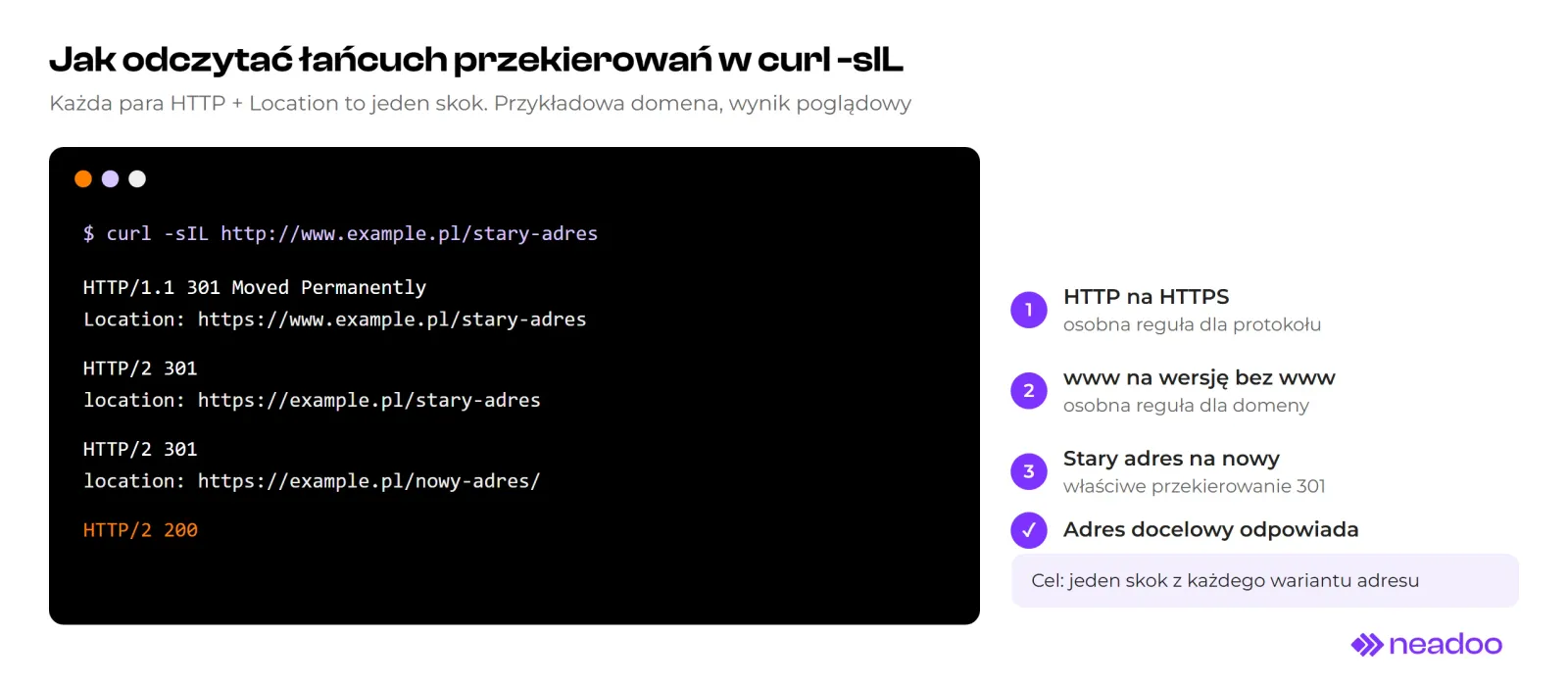
Fig. 5. Three hops in one chain. The first two will disappear after merging the HTTPS and www rules into one.
About <IfModule mod_rewrite.c> around redirects: the block protects against a 500 error when the module is not loaded, but then redirects silently stop working and nobody notices. In our opinion, for SEO redirects, it is better to get a 500 error right after deployment than to discover in Search Console a few weeks later that the old URLs are returning 200.
Frequently Asked Questions About the .htaccess File
1. Where is the .htaccess file located?
Usually in the site's root directory, which is public_html, www, or htdocs on the server. The name starts with a dot, so you need to enable showing hidden files in your file manager and FTP client. If the file does not exist, you can create it as a regular text file.
2. Does the .htaccess file work on an Nginx server?
No. Nginx does not read .htaccess files, and redirects must be configured in the server configuration, using Nginx syntax. Apache rules do not transfer one-to-one.
3. Why are my .htaccess changes not working?
Usually for one of three reasons: the server ignores the file (AllowOverride None), the pattern starts with ^/, or the rule sits below the CMS block. Also check whether you are testing in a browser that has cached an earlier 301 redirect.
4. Does the order of rules in .htaccess matter?
Yes. mod_rewrite rules are processed from top to bottom, and the first matching rule with the L flag terminates the run. Place domain canonicalization at the very top, then redirects for individual URLs, and the CMS block at the end.
5. How do I fix the "The page redirected you too many times" error?
You need to find two rules that redirect to each other. Typical causes include forcing and removing www or a trailing slash at the same time (for example, a rule in .htaccess and a CMS setting) or redirecting to HTTPS behind Cloudflare in "Flexible" mode. curl -sIL will show which URLs the request is cycling between.
6. How do I set up a 301 redirect in a .htaccess file?
If you want to move a single subpage to a different URL, a single line is enough: Redirect 301 /stary-adres/ https://example.pl/nowy-adres/ or the rule RewriteRule ^stary-adres/?$ /nowy-adres/ [R=301,L]. The former also redirects everything beneath the old path, while the latter redirects only that single address. Add both above the CMS block.
Sources
- Apache HTTP Server 2.4, "Apache HTTP Server Tutorial: .htaccess files"
- Apache HTTP Server 2.4,
mod_rewritedocumentation - Apache HTTP Server 2.4, "RewriteRule Flags"
- Apache HTTP Server 2.4, documentation for
mod_alias,mod_dir,mod_authz_core,mod_authz_host, andcore(ErrorDocument) - WordPress, "Apache HTTPD / .htaccess"
- Google Search Central, "Redirects and Google Search"
- Google Search Central, "Site moves with URL changes"
All sources verified October 15, 2026.