
Napkin AI - What It Is and How to Turn Text into Graphics and Diagrams
A page built entirely of text loses out to content that presents the same information as a diagram or chart - readers remember images faster than a descriptive paragraph. Editors and marketers are therefore looking for tools that shorten the gap between finished text and engaging infographics, without needing to open Photoshop or Canva. Napkin AI solves this problem: it turns a pasted snippet into a ready-made visual in just a few seconds, and the resulting file goes straight into an article, presentation, or social media post.
What is Napkin AI and how does it work
Napkin AI is artificial intelligence-based software that automatically transforms input text into professional diagrams, charts, and infographics in about 20 seconds. The tool is available at napkin.ai, and access requires only registration - an account can be created using an email address or an existing Google account. Creating diagrams does not require graphic design skills or knowledge of software like Illustrator, making Napkin useful for marketers, SEO blog writers, and professionals preparing sales presentations alike. This solution, where text and graphics are created in one place, shortens the content production cycle, which previously required a separate graphic design stage.
Use cases range from SEO-optimized blog posts, business presentation slides, and investment reports, to social media graphics (LinkedIn, X) and newsletter content. Visuals work well not only in marketing, but also in business - in executive summaries or investor materials - which is why the tool is used by both agencies and marketing teams in smaller companies. An editor who previously described a process or structure using only a paragraph now gets a ready-made diagram faster than it takes to write a creative brief for a designer.
Key features and technologies behind data visualization
The tool operates based on machine learning models, natural language processing (NLP), and computer vision. The algorithm first performs a text analysis, examining the logical relationships between sentences - chronological sequences, cause-and-effect dependencies, feature lists - and only then suggests the appropriate type of visual: a flowchart, timeline, bar chart, or infographic. Text structure recognition is based on models trained on large sets of business documents, which is why the tool rarely confuses a list of steps with a list of features. In practice, these technologies complement each other: NLP breaks the text down into semantic units and recognizes the relationships between them, while computer vision is responsible for selecting icons and shapes that fit the described concepts thematically.
Dynamic synchronization is key here, meaning that any change made to the source text instantly updates the linked diagram. Editors do not have to manually adjust every graphic element after each text edit - simply edit the paragraph, and the chart or diagram updates on its own.
Step-by-step guide to generating graphics and diagrams
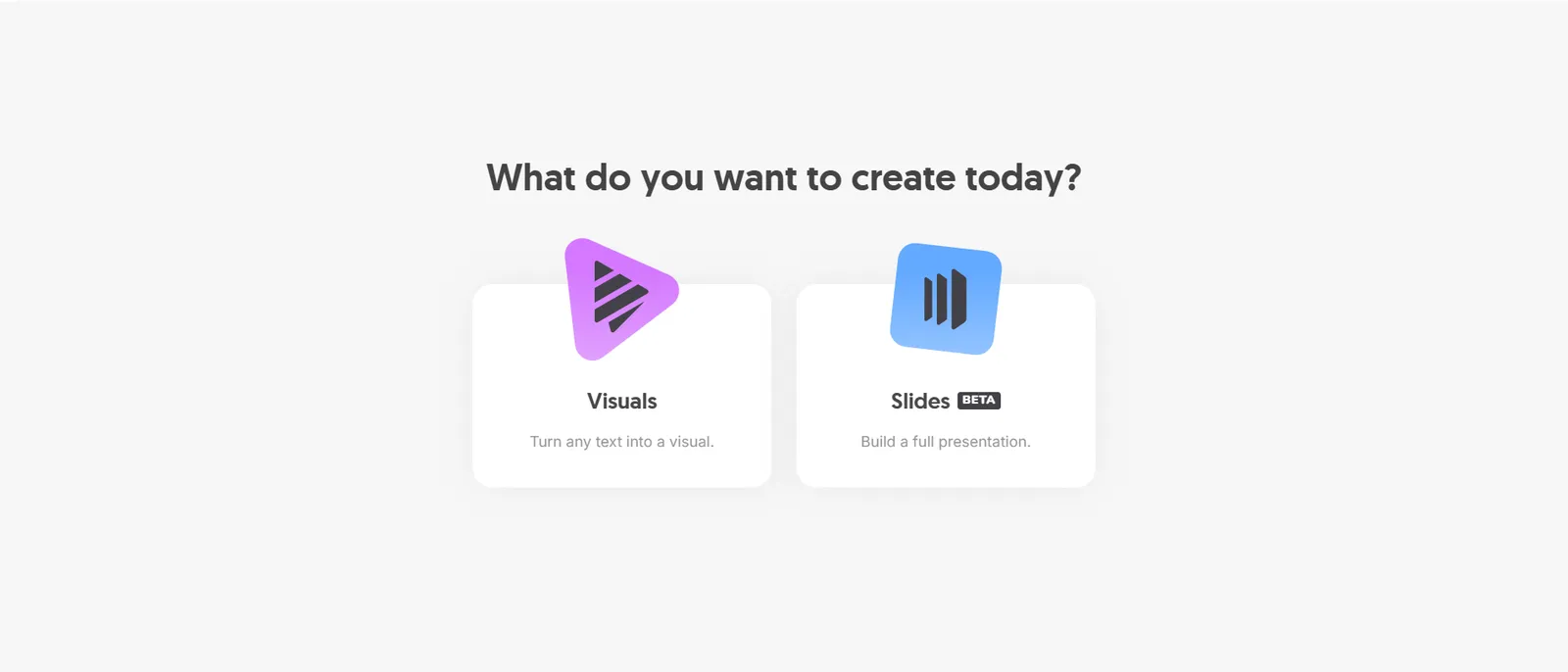
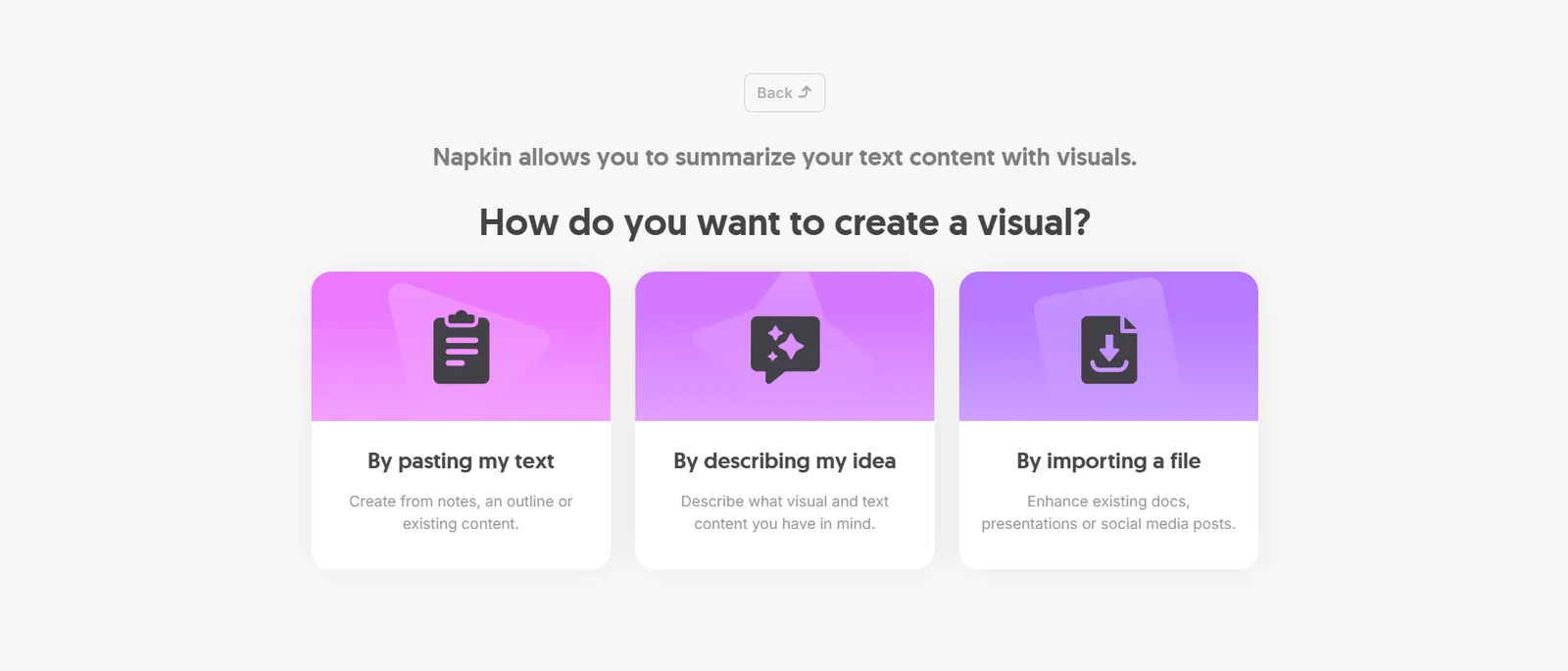
The process of creating graphics in Napkin AI is fully automated and contained within an intuitive document editor. The choice of text visualization tool depends on whether the team more often needs single graphics or entire presentations - after logging in via a Google account or email, the user selects the project type in the dashboard: a single visualization (Visuals) or a full presentation (Slides, a beta feature). A new project is started with the "+New napkin" button, and the source material goes straight into an internal document editor that resembles a standard text editor.
Importing and entering content into the editor
Napkin AI supports not only direct text or prompt entry, but also importing ready-made files in DOC, PPT, PDF, HTML, and Markdown formats. An editor can paste working draft text, describe in a single sentence what material should be created, or upload an existing document without losing the initial logical structure - headings, lists, and paragraphs. Importing Markdown files is particularly valuable for technical teams that maintain documentation outside a traditional text editor and want to illustrate it quickly without manually copying content. Importing pre-existing files facilitates coordination between the researcher, copywriter, and graphic designer, because the source text can be created in a completely separate tool, with visualization added only at the final stage of content production.
Launching the Generate Visuals feature and selecting a diagram variant
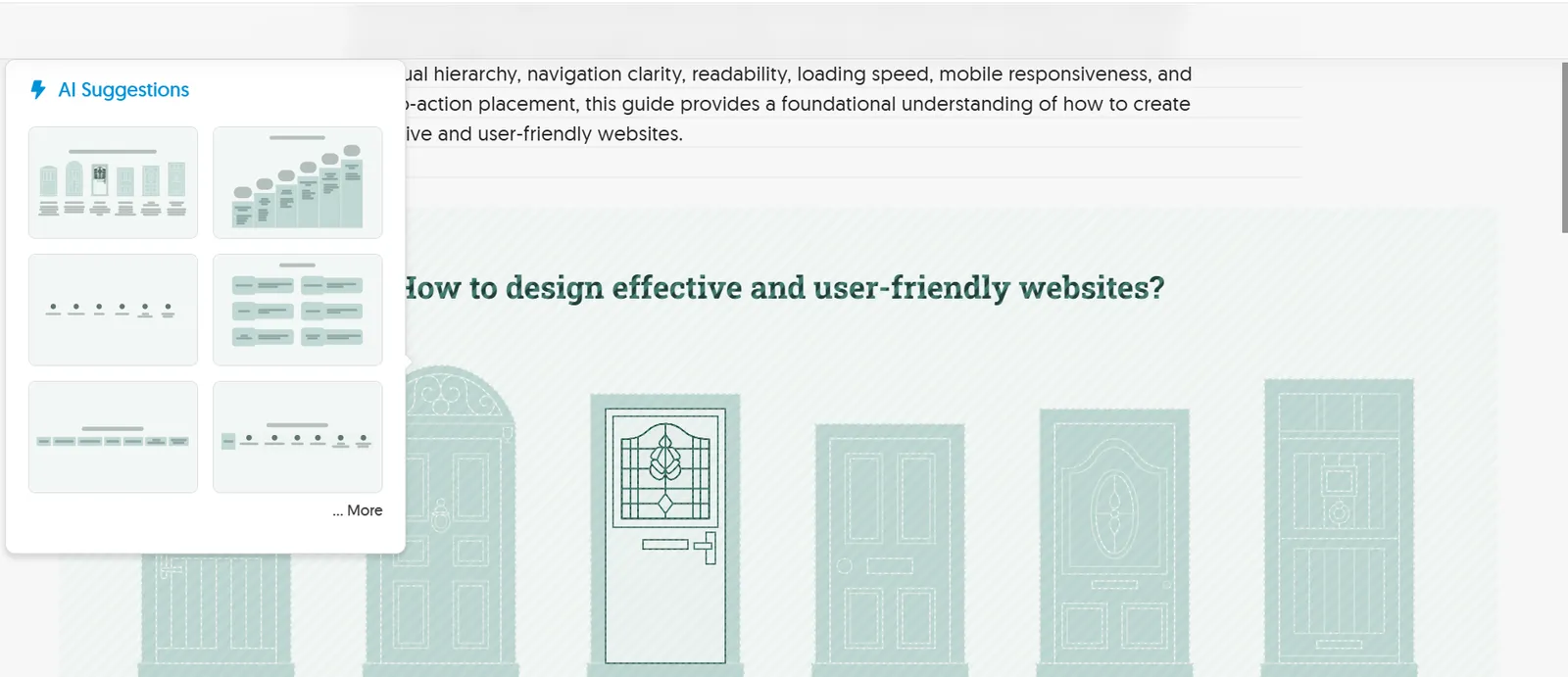
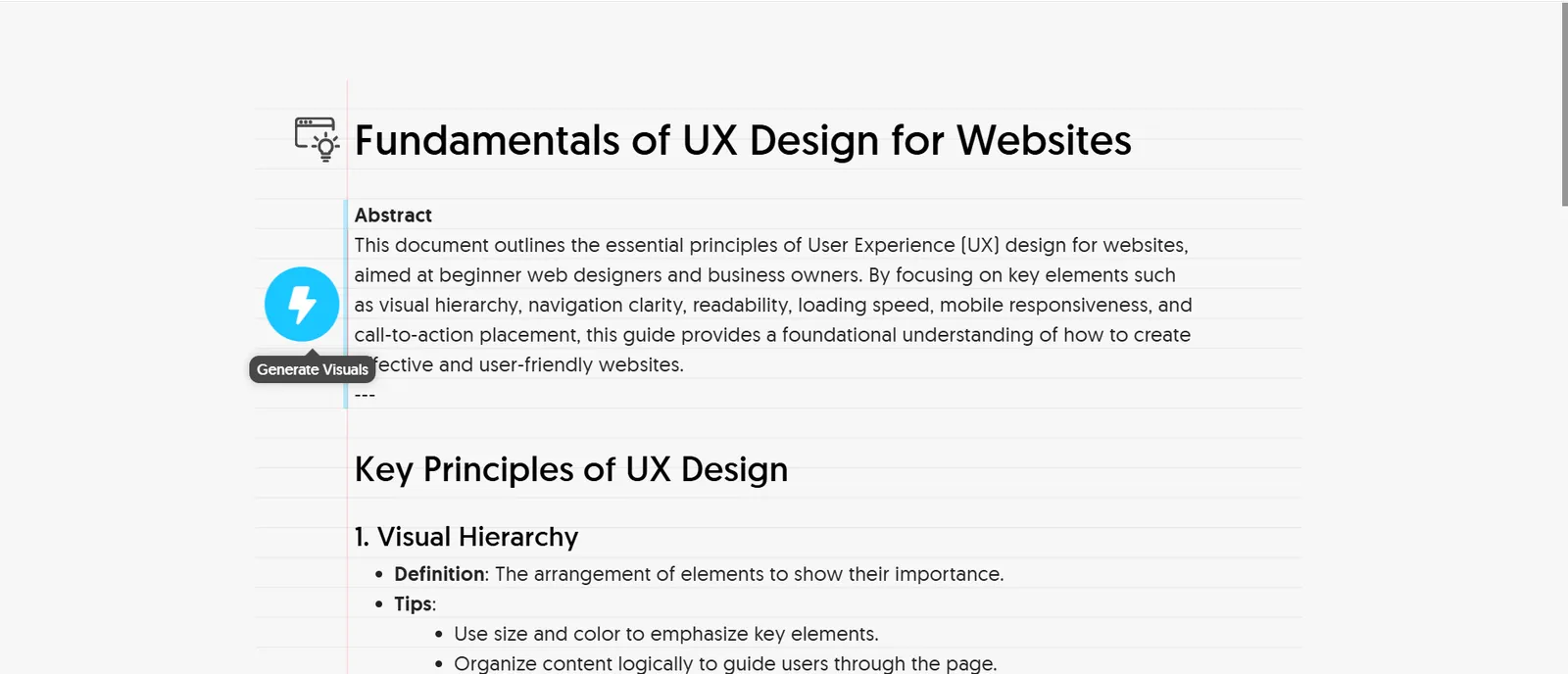
Generating a visualization only requires selecting a fragment of text and clicking the blue lightning bolt icon (Generate Visuals). Following this action, several layout suggestions tailored to the structure of the selected fragment appear in the sidebar - one version shows a timeline, another a step-by-step list, and another a two-column comparison. The editor selects the variant that best captures the meaning of the data, and Napkin renders a finished graphic that also acts as a visual summary of the described article section. A passage describing a four-step process usually turns into a horizontal flowchart with arrows, while a list of several product benefits becomes a set of tiles with icons - the diagram type is selected by the algorithm, but the final choice always belongs to the editor.
Editing elements with Spark Search and customizing styles
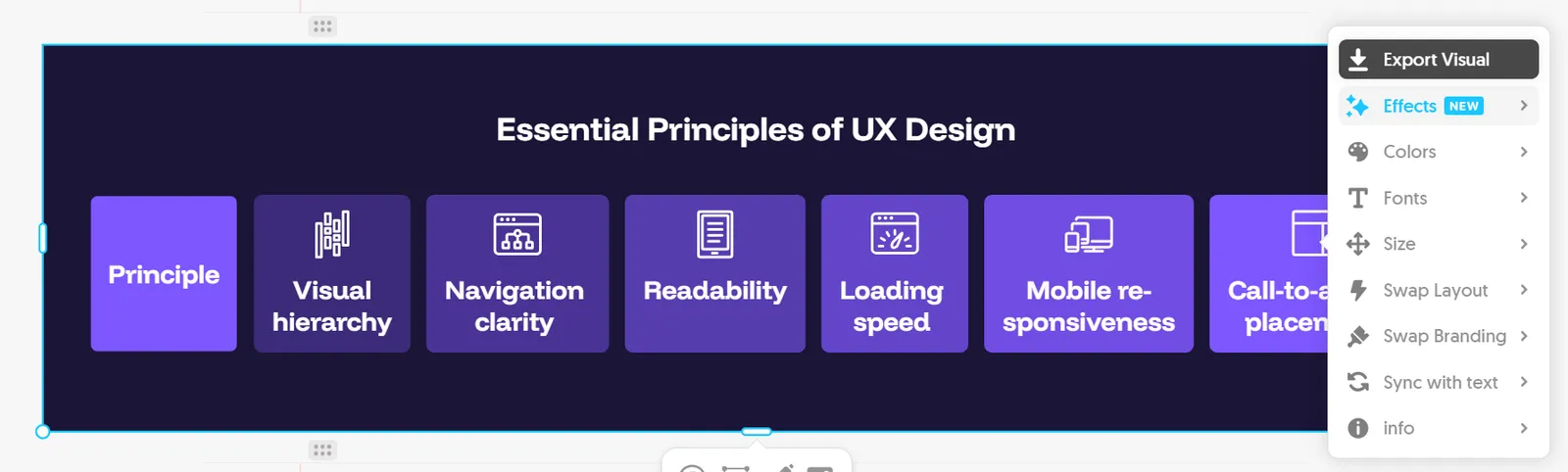
The built-in Spark Search tool allows you to manually swap icons, add shapes, and adjust the color palette without having to re-render the entire project. The sidebar also provides Colors, Fonts, Swap Layout, and Swap Branding options, allowing you to match the graphic to the brand's visual identity without leaving the editor. The Sync with text feature helps maintain consistency between content and diagram even after manual edits - if the editor changes a label directly on the diagram, the editor recognizes this change and does not overwrite it during subsequent generations. Color and font settings saved in one project can be replicated in others, making it easy to maintain a consistent graphic identity across an entire series of blog articles or materials for a single client.
Exporting finished assets and third-party integrations
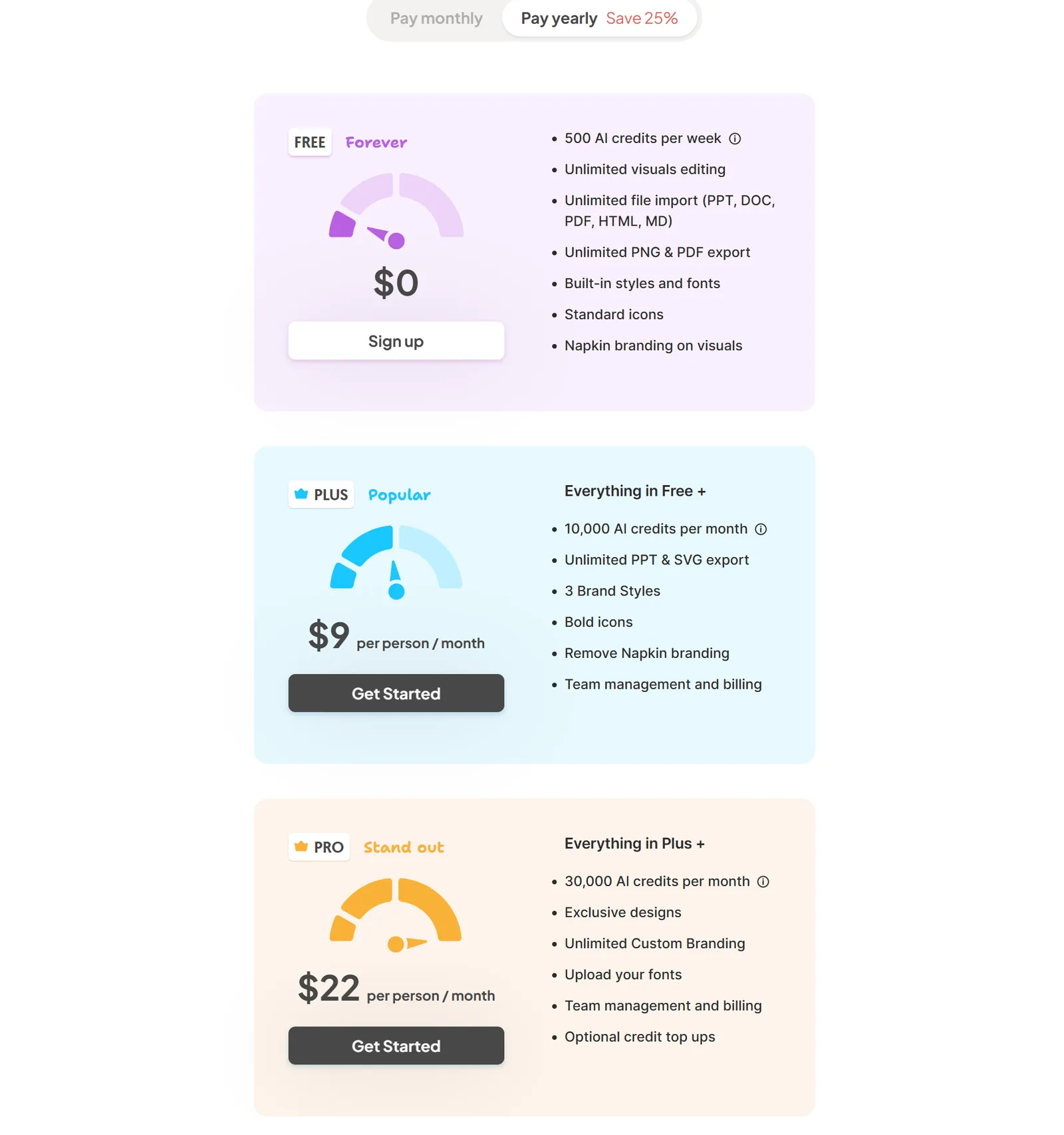
Completed projects can be downloaded in PNG and PDF formats on the free plan, and additionally in SVG and PPT on paid plans. The Free plan does not limit the number of exports - the only limit is 500 AI credits per week, consumed by generating new visualizations rather than downloading already completed files. The Plus plan costs $9 per person per month and provides 10,000 AI credits per month, while the Pro plan at $22 per person per month increases the pool to 30,000 AI credits and adds custom branding along with the ability to upload custom fonts. The choice between these two plans depends primarily on content production intensity: with a few visualizations per week, the Plus plan pool is usually sufficient, while for larger scale involving multiple projects and clients simultaneously, the Pro plan works better.
A PDF file can be exported in A4 layout, as a continuous page, in 8.5 x 11 inch format, or as a 16:9 aspect ratio slide - each of these formats preserves the full layer of information from the source text, so the graphic does not lose its context after export. The finished file goes directly into PowerPoint, Google Slides, Canva, or Keynote, and the PNG graphic can be inserted straight onto an article page or into a social media post.
Best Practices for Formatting Prompts and Source Text
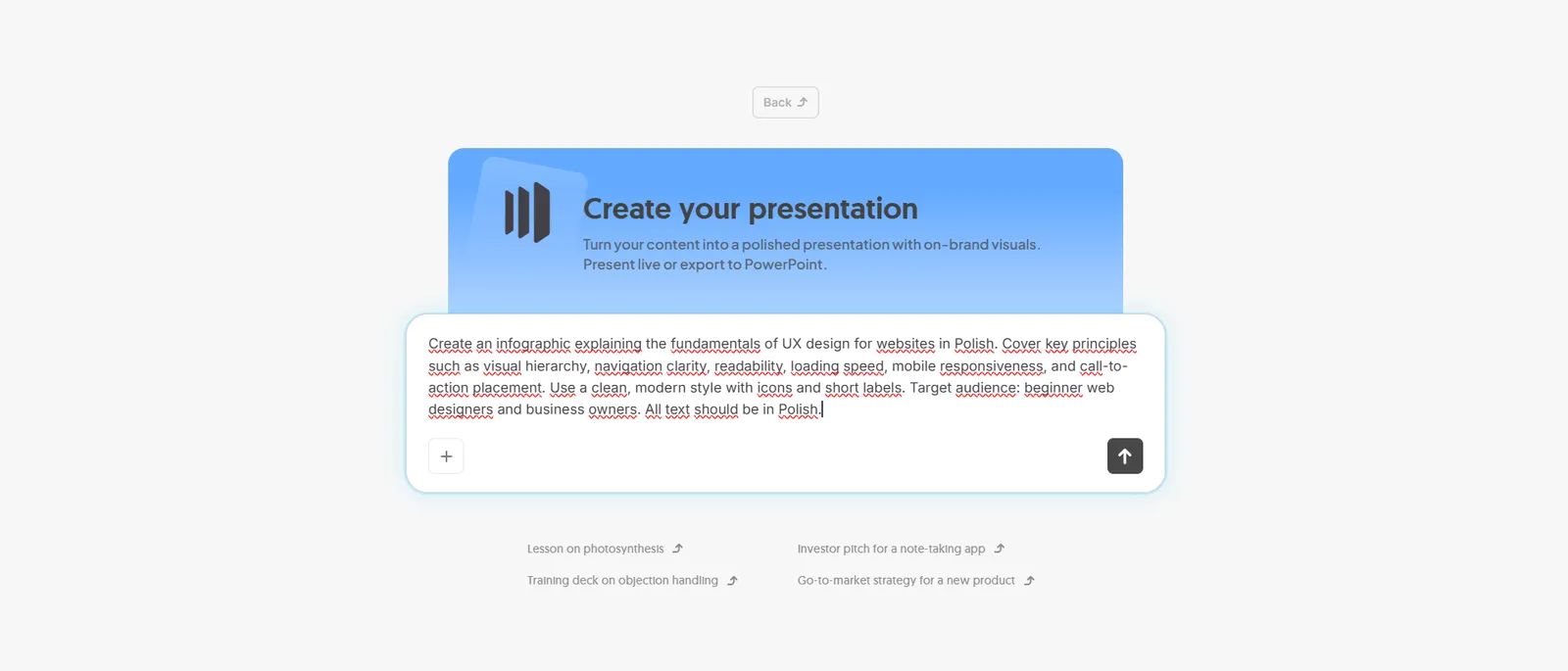
The effectiveness of text analysis algorithms - which is also crucial in the context of AI SEO - depends on maintaining a clear logical hierarchy in the source material. Bulleted lists, clear cause-and-effect relationships, and short, unambiguous sentences make it easier for the NLP engine to identify which type of diagram best reflects the data structure. A long paragraph without a breakdown into steps is more likely to result in a generic infographic rather than a precise flowchart, and with texts lacking such structure, the algorithm tends to suggest a layout that is less aligned with the content. Three editorial habits most significantly improve the quality of automatically generated diagrams:
- break down a long description into steps or points instead of using a single dense paragraph
- explicitly name cause-and-effect relationships using phrases such as first, next, and as a result
- avoid combining two different topics in a single sentence using the conjunction and
It is also worth avoiding ambiguity: if an excerpt simultaneously describes a process and a list of features - for example, in product descriptions where e-commerce SEO matters - the algorithm might merge both threads into a single, less readable diagram. Well-structured source text enhances the efficiency of the entire editorial workflow - fixing a misidentified structure is what takes longer, not the actual graphic generation itself.
Articles enhanced with readable infographics and charts hold the audience's attention longer, which directly impacts time spent on the page and indirectly supports Google website SEO. Regularly using Napkin AI to produce blog content, newsletters, and social media graphics allows you to maximize the potential of finished text and maintain a consistent, professional visual style without involving a graphic designer for every single piece of content.