
502 Bad Gateway Error: Causes, Server Diagnostics, and Fixes
The 502 Bad Gateway error is an HTTP code from the 5xx family, which means that an intermediary server (a proxy server or gateway) receives an invalid response from an upstream server or cannot connect to it at all. This is a communication error between servers, so the problem lies on the server side, not with the browser. For a visitor, this means that the website stops displaying, even though the server running in the background may be operating properly. The most common causes are server overload, a hung PHP-FPM service, an incorrect Nginx configuration, outdated DNS records, or a firewall blocking traffic.
In this article, you will learn how to identify the source of the problem when a 502 Bad Gateway error occurs in Nginx, Cloudflare, or WordPress. We show Linux and Docker commands, explain what log entries mean, and describe troubleshooting steps separately for the user and for the administrator.
What is a 502 Bad Gateway error and how does it differ from a 504 error
The 502 code means that the gateway server received an invalid response from another server that is upstream from it. The 504 Gateway Timeout error means something else: no response at all within the specified time limit. Both codes belong to the 5xx family, so the cause lies in the infrastructure, not on the user's device.
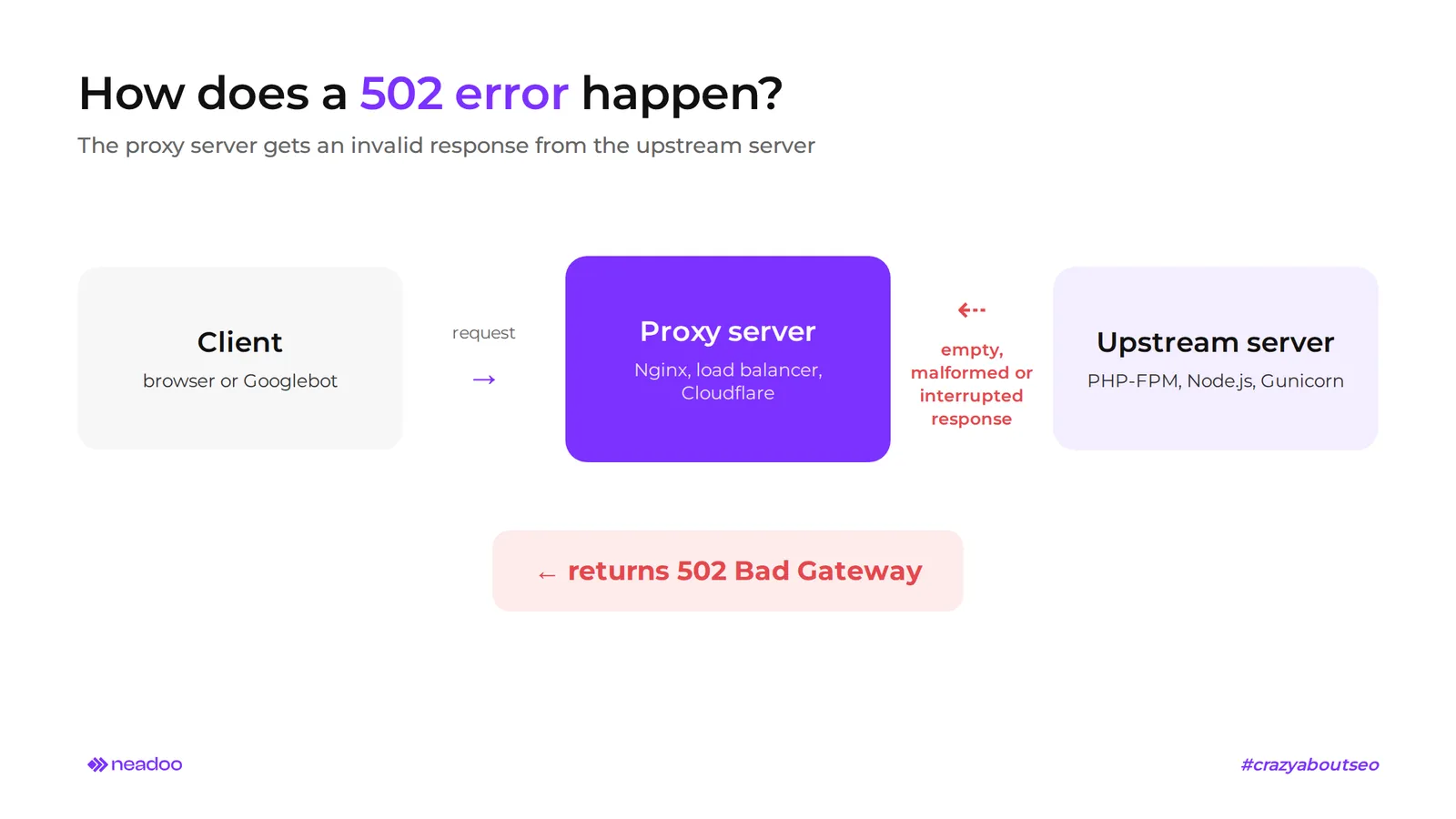
The 502 Bad Gateway error appears where a request passes through an intermediary before reaching the application. Such an intermediary is most often Nginx running as a reverse proxy, Apache with mod_proxy, a load balancer, or a content delivery network, e.g., Cloudflare. The proxy server forwards client requests to the backend (PHP-FPM, Node.js, Gunicorn) and waits for a valid HTTP response. If the upstream server returns an empty or malformed response, or terminates the connection during transmission, the gateway server cannot handle it and returns a page with the 502 Bad Gateway error code.
The error message varies depending on the server and web browser: "Error 502", "HTTP Error 502 - Bad Gateway", "502 Proxy Error", "502 Bad Gateway nginx", or "502 Service Temporarily Overloaded". The "nginx" or "Apache" suffix indicates which server software generated the error, making it easier to search the logs.
| Feature | 502 Bad Gateway Error | 504 Gateway Timeout Error |
|---|---|---|
| Nature of the problem | The upstream server responded, but the response was invalid or the connection was dropped | The upstream server did not respond within the allocated time |
| Typical cause | Application process crash, proxy misconfiguration, dropped TCP connection | Overloaded backend, long-running database query, timeout set too short |
| Responsible layer | Gateway <-> upstream communication (response content) | Gateway <-> upstream communication (wait time) |
| Proxy server reaction | Rejection of the malformed response | Aborting the request after exceeding the timeout limit |
With a 504 error, the upstream server is still processing the request or has hung and failed to respond before the time limit expired, e.g., proxy_read_timeout in Nginx. With a 502 error, the proxy server receives an invalid response: unreadable or incomplete. Therefore, for a 502, check the stability and logs of the application process, and for a 504, check backend performance and timeouts.
How to fix a 502 error from the website user's perspective
A 502 Bad Gateway error is usually a temporary issue, and some reports resolve without any server intervention. A brief server overload on the website side can cause outages lasting several dozen seconds. Before assuming the error is on the server side, check whether it is caused by a computer or network problem: outdated cache, an extension conflict, a router failure, or incorrect DNS settings from your internet service provider. Follow these steps:
- Refresh the web page and clear your browser cache. Wait a minute and reload the page using the Ctrl+F5 shortcut (Windows) or Cmd+Shift+R (macOS), which bypasses cached resources. If the error persists, clear your browser cache along with cookies and browsing data, then open the address in incognito mode. Try another browser: if the site works in another browser and in any browser other than that one, an extension or antivirus software filtering traffic is to blame.
- Clear the DNS cache and restart your router. DNS records are used when browsing web pages throughout the entire operating system, not just in the browser. The command ipconfig /flushdns (Windows) or sudo dscacheutil -flushcache; sudo killall -HUP mDNSResponder (macOS) removes outdated DNS entries. This is especially helpful after a server IP address change, when the DNS update is already seen by part of the network, but your computer is still querying the old address. Restart your router and check whether other websites on the same network work - that is, whether you have internet access.
- Switch to public DNS servers. DNS settings using the addresses 8.8.8.8 (Google) or 1.1.1.1 (Cloudflare) bypass incorrect entries from your internet service provider. You can check the result by opening the site you want to visit on any device on a different network, e.g., on a phone using mobile data.
- Use an archived version of the site. When you need the website's content and the error persists, check the Wayback Machine, which stores archived copies of websites. Copies on Google are unavailable: Google removed the "Cached" link in February 2024, and the cache: search operator in September 2024.
If none of the above methods help across different devices and networks, the problem is not on the user's end. It is a server error that an administrator must diagnose. You can report it to the website owner, providing the time it occurred and the full error message.
Server log analysis and Linux CLI diagnostics
Interpreting key messages in web server logs
Administrators should start with the server error logs, because the entry in error.log indicates at which point of communication with the upstream the failure occurred. In Nginx, the default path is /var/log/nginx/error.log.
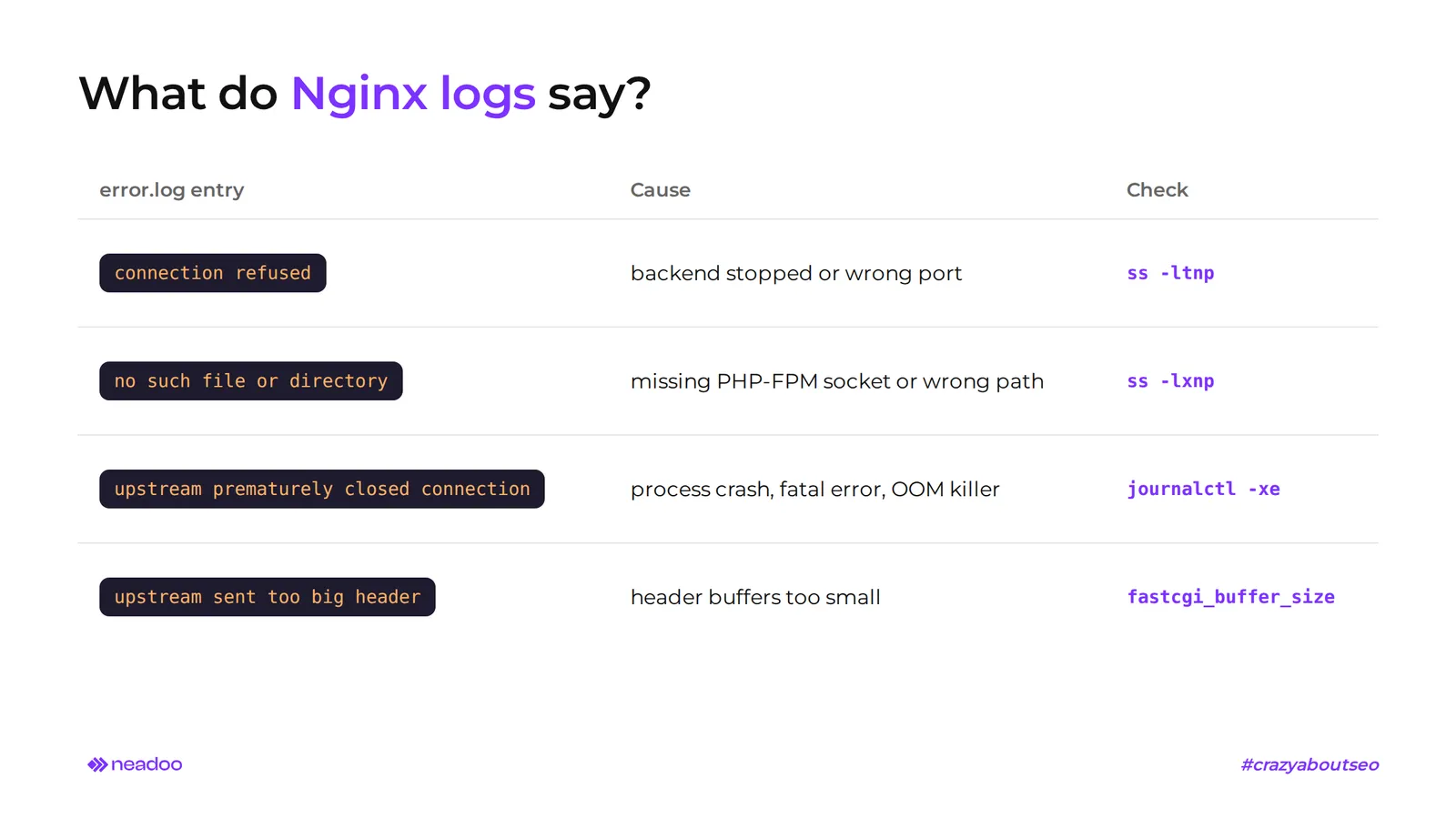
"Connection refused" means that Nginx tried to connect to the backend, but nothing was listening on the specified port or address. PHP-FPM, Gunicorn, or Node.js is stopped, or the configuration points to the wrong port.
"No such file or directory" usually applies to communication via a UNIX socket. Nginx looks for the socket file at the specified path, e.g., /run/php/php8.3-fpm.sock, and it does not exist. The PHP-FPM service is stopped or the path in fastcgi_pass does not match the actual location of the socket, which often happens after updating PHP to a newer version.
The entry that reveals the most is "upstream prematurely closed connection": the backend accepted the connection, but broke it while sending the response. Three typical causes are an application process crash, a critical error in the script, and intervention by the OOM killer - a Linux mechanism that kills a process consuming too much RAM. Distinguishing between them requires CLI tools.
CLI tools: verifying processes, sockets, and RAM usage
The service status is checked with systemctl status php8.3-fpm (the name depends on the PHP version; similarly nginx or gunicorn). The active (running) state confirms that the process is working. The failed or inactive state explains the "connection refused" or "no such file or directory" message.
Whether the port or socket is actually listening can be shown by ss -ltnp (TCP ports) and ss -lxnp (UNIX sockets). The first command displays listening ports along with the process PID. The absence of an entry for the port from the Nginx configuration confirms the cause. The second shows socket paths and helps catch a mismatch between the Nginx configuration and the PHP-FPM socket.
In the case of "upstream prematurely closed connection", check journalctl -u php8.3-fpm or journalctl -xe. The journal records service restarts, process exit codes, and OOM killer entries with the PID of the killed process. The presence of such an entry clearly indicates a lack of RAM. If it recurs under normal traffic, the solution may be upgrading to a larger hosting plan, as a single server with a small amount of RAM will not handle peak load.
Let's check your website's potential
Share your website and email - we'll get back to you with a real analysis, no strings attached.
Troubleshooting in Nginx, PHP-FPM, and Docker environments
The 502 error in Nginx has three main sources: incorrect configuration of the proxy_pass and fastcgi_pass directives, hung PHP-FPM processes, and exceeding max_execution_time. In Docker, there is a fourth: incorrect addressing of services in the internal network.
Optimizing proxy and FastCGI directives in Nginx
proxy_pass forwards the request to the HTTP backend, while fastcgi_pass directs it to the FastCGI process, most often PHP-FPM. Confusing these mechanisms or providing an outdated address, port, or socket path results in an immediate 502 error.
A separate case is the host name in proxy_pass. By default, Nginx resolves it via DNS only once, at startup. When the backend DNS records change, e.g., after migrating to another server, Nginx continues to connect to the old IP address until reloaded. Changed DNS records without reloading the configuration are a typical cause of the 502 error after a migration.
- Mismatched header buffers. Too small proxy_buffer_size and fastcgi_buffer_size break the connection when the backend returns large headers, e.g., extensive session cookies. The log then shows "upstream sent too big header". Increasing these directives, and for large responses also fastcgi_buffers, resolves the problem without changes to the application code.
- Script execution time limits. After exceeding max_execution_time from php.ini, PHP-FPM returns an incomplete response, which Nginx treats as a gateway error. The value must be consistent with fastcgi_read_timeout, because a discrepancy between the two limits is a common cause of sporadic errors during long operations, e.g., exporting large reports.
- Hung PHP-FPM processes. The worker pool has a limited number of processes (pm.max_children). When all are busy with slow queries, subsequent users receive a 502 error. Monitoring pool status and restarting the service restore traffic handling.
- Concurrent connection limit. worker_connections in the events block specifies the maximum number of simultaneous connections per worker process. A value that is too low under heavy traffic causes requests to be rejected already at the Nginx level.
After each change, test the syntax with the command nginx -t and reload the configuration via systemctl reload nginx. Next, refresh the page and check if the 502 Bad Gateway error is gone.
Isolating communication issues in Docker networks
In containers, a typical mistake is referencing localhost inside the Nginx container instead of the service name from docker-compose.yml. Each container has its own network namespace, so localhost points to the Nginx container itself, and fastcgi_pass cannot find the listening process.
- Correct service addressing. Instead of fastcgi_pass 127.0.0.1:9000;, the configuration should point to the service name, e.g., fastcgi_pass php-fpm:9000;. Docker Compose creates an internal DNS that maps service names to container addresses on the same network.
- Shared network verification. Nginx and PHP-FPM must belong to the same network defined in docker-compose.yml. The absence of a shared network or a typo in its name produces the same symptom as an incorrect proxy_pass.
- Container startup order. If Nginx starts before PHP-FPM, the first requests will hit a service that is not yet listening. depends_on alone sets the order, but does not wait for the service to be ready. A healthcheck combined with the condition: service_healthy condition is used for this purpose.
Diagnosing and Fixing Error 502 in WordPress
In WordPress, a 502 error most often results from PHP memory exhaustion caused by plugins, hung database queries, or critical errors in the theme. Fixing it requires checking the application layer: plugins, the theme, and queries to MySQL or MariaDB.
- Enable PHP error logging. In wp-config.php, set WP_DEBUG and WP_DEBUG_LOG to true. PHP errors, including critical ones that lead to a 502 error, will go to the wp-content/debug.log file along with the name of the plugin, function, or line of theme code.
- Increase the PHP memory limit. When debug.log shows "Allowed memory size exhausted", increase the limit in wp-config.php, e.g., define('WP_MEMORY_LIMIT', '256M');, and simultaneously memory_limit in .user.ini or php.ini. The WordPress constant alone will not exceed the limit set on the server. Also check max_execution_time, as data imports or backups can simultaneously consume a lot of memory and exceed the execution time.
- Disable faulty plugins and the theme. Without dashboard access, rename the directory in wp-content/plugins/ or wp-content/themes/ via SFTP, e.g., by adding -disabled. WP-CLI works faster: wp plugin deactivate or wp plugin deactivate --all, while wp theme activate with the name of an installed default theme (e.g., twentytwentyfive) restores a stable appearance. If the error appeared after an update, restore the previous version of the plugin or a backup from before the changes.
- Check database queries. Slow SQL queries, e.g., from a heavy plugin or an extensive WP_Query, block the PHP-FPM pool similarly to exhausting pm.max_children. The wp db check command checks the tables, and wp db repair fixes corrupted ones without logging into phpMyAdmin.
CMS stability directly translates to site indexing, which we describe in the final section.
The Specifics of the 502 Bad Gateway Error in Cloudflare
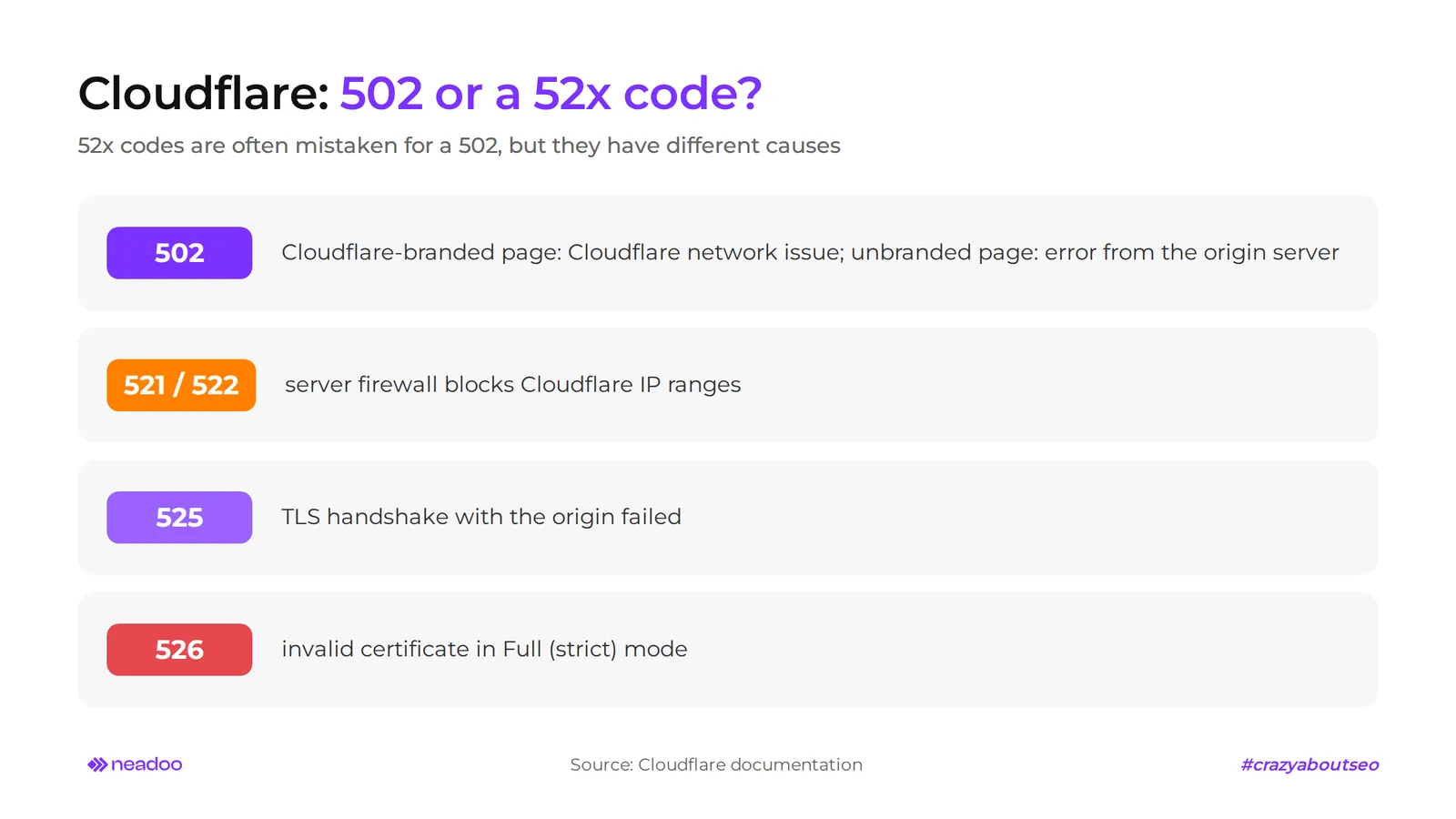
A 502 error in Cloudflare has two sources: an outage on the Cloudflare network side or a 502 error returned by the origin server, which Cloudflare merely passes along. The first case is beyond the website owner's control, while the second requires diagnosing the backend as described above.
The appearance of the error page indicates the source. A page with Cloudflare branding and a Ray ID number means that the 502 Bad Gateway error was generated by the Cloudflare network. In that case, it is worth checking cloudflarestatus.com and, if necessary, reporting the incident with the Ray ID number. A plain page without Cloudflare elements, e.g., with "nginx" added, means that Cloudflare is passing along a 502 error generated by the origin server, and the cause lies in its configuration.
Connection problems between Cloudflare and the origin have their own codes in Cloudflare ranging from 520 to 526, which are often confused with a 502 error:
- Error 526 (Invalid SSL certificate) appears in SSL/TLS Full (strict) mode when the certificate on the origin server is invalid, expired, or self-signed. The solution is a certificate from a trusted authority or a free Cloudflare Origin CA. Treat switching to Full mode without verification solely as a diagnostic test.
- Error 525 (SSL handshake failed) means that the origin server failed to establish a TLS session, e.g., due to unsupported ciphers or port 443 being closed.
- Errors 521 and 522 appear when the server firewall blocks Cloudflare IP addresses. If the firewall (iptables or UFW) does not allow official Cloudflare IP ranges, those addresses are blocked, connections are dropped, and all site visitors see the error. You can check this with the command iptables -L -n or ufw status verbose.
Administrators should also check the firewall configuration on the Cloudflare side. Excessively restrictive WAF rules in the dashboard can block traffic before it reaches the server. To the user, this looks like a network error, although the cause is completely different.
The final group of causes is DNS. After changing the server IP address, the A record in Cloudflare must point to the new origin. The old record directs traffic to a decommissioned server and results in 52x or 502 errors until the DNS records are corrected.
Impact of Error 502 on Indexing and Crawl Budget in SEO
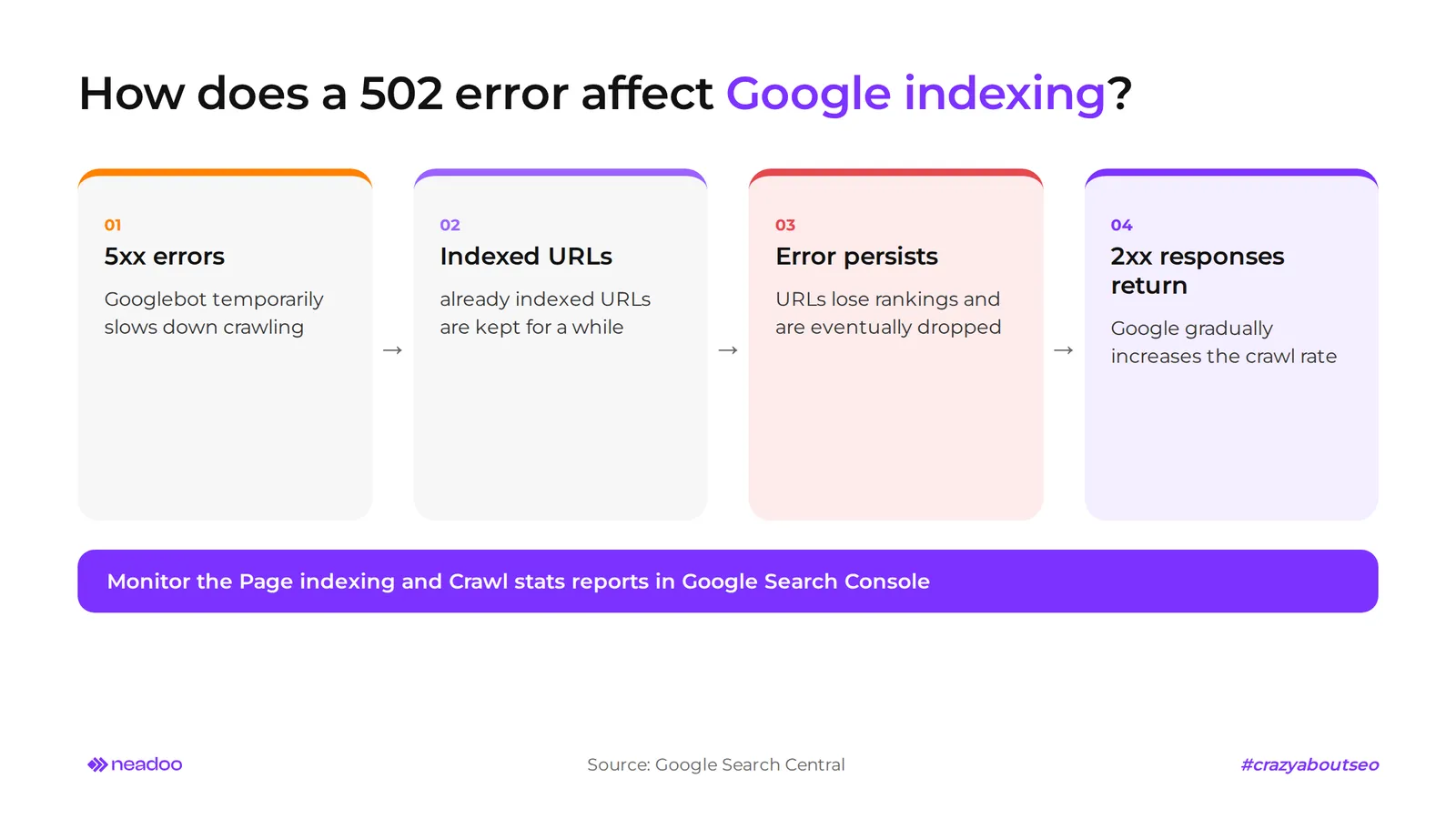
5xx errors, including 502, cause Google to temporarily slow down site indexing. URLs that are already indexed initially remain in the index, but if the error persists, they eventually drop out. This is a protective reaction by the search engine: Googlebot treats recurring server errors as a sign of overload and limits the number of requests to avoid worsening the outage.
Content that Googlebot receives from a URL returning a 5xx code is ignored, even if the page opens correctly from another server or in a user's browser. The bot will return for it later. Once valid 2xx responses are restored, Google gradually increases the crawling speed. A short outage lasting a few hours usually leaves no lasting damage in search results. It is a different story when the 502 Bad Gateway error returns daily. The problem grows when the error recurs cyclically or lasts for days. Every failed attempt to fetch a page consumes crawl budget that could have gone to new or updated subpages, and during a prolonged outage, URLs lose rankings and eventually drop out of the index.
You can check the scale of the problem in Google Search Console: in the "Page indexing" report ("Server error (5xx)" status) and in the "Crawl stats" report under Settings, which shows host status, response codes, and average response time. Check these reports regularly and set up external uptime monitoring that will notify you of an error before a drop in traffic does. A stable website server is the foundation without which no efforts within SEO will yield lasting results. Our audits show that sporadic 502 errors during peak hours are often the first sign that a hosting plan is no longer sufficient.
FAQ
Does a 502 Bad Gateway error mean the server has been hacked?
No. A 502 error is a standard HTTP code from the 5xx series indicating a communication issue between an edge/proxy server and an upstream server. It results from overload, a configuration error, or a hung service, not a hack. However, if a 502 Bad Gateway error appears after suspicious changes to site files, check your access logs.
How does a 502 Bad Gateway error differ from a 500 Internal Server Error?
A 500 Internal Server Error means an issue inside the server handling the request itself, such as an error in a script. A 502 error relates to communication between an intermediary server and the destination server, which returned an invalid response or did not respond at all. Other 5xx errors, such as 503 or 504, have still other causes.